

Daily Workflow
This is your daily loop with JobCtrl: set up once, then repeat Discover → review → Apply. The web app is the main way you work; the command line stays available for maintenance and diagnostics. For a screen-by-screen walkthrough of each page below, see the Product Tour.
For a lifecycle-level view of the records these steps create, read Open-source Job Application Tracker.
Command spelling
This guide uses the canonical installed spelling, jobctrl <command>. The same native executable owns jobctrl start, stop, and status, regardless of whether curl or Homebrew acquired it. Contributors running from source can use the checkout-prefixed commands documented in Local Development.
- Create your profileAdd accurate experience, skills, preferences, and your baseline resume.You
- Configure discoveryChoose target roles, locations, seniority, and job sources.You
- Find and prepare jobsDiscover, enrich, score, and prepare eligible jobs.JobCtrl
- Review jobs and scoresInspect fit evidence and decide which roles deserve attention.You
- Edit the materialsEdit the tailored resume and verify every claim before approval.You
- Run the dry rehearsalRehearse the browser path with submission physically blocked.JobCtrl
- Approve live submissionApprove the exact materials, profile version, URL, and evidence.You
- Submit and recordSubmit once, verify the outcome, and preserve the audit trail.JobCtrl
Under the hood, Discover runs Enrich, Score, Tailor, and Cover work for each eligible job. Live submission approval is bound to the current materials, profile version, application URL, and dry-run evidence.
1. Build The Candidate Profile
Use the Profile page or the resume import flow to create structured profile data. Profile owns personal details, experience, education, skills, evidence, the baseline resume, and optional EEO fields. It is the source of truth every later stage scores and tailors against.
Use Preferences for application defaults, tailoring and writing rules, resume style, and template versions. Use Settings for shared runtime policy, credentials, model selection, and browser capabilities. Those policy surfaces can constrain work, but they do not create candidate evidence.
Profile and settings forms autosave after a short delay. The explicit Save buttons use the same save path.
Use the CLI route only when you want terminal workflows. Initialize and check the local workspace first:
jobctrl init
jobctrl doctor
jobctrl init creates the local CLI workspace, starter profile, resume, and search configuration under ~/.jobctrl/. The web app remains the full editor for structured profile fields and resume review.
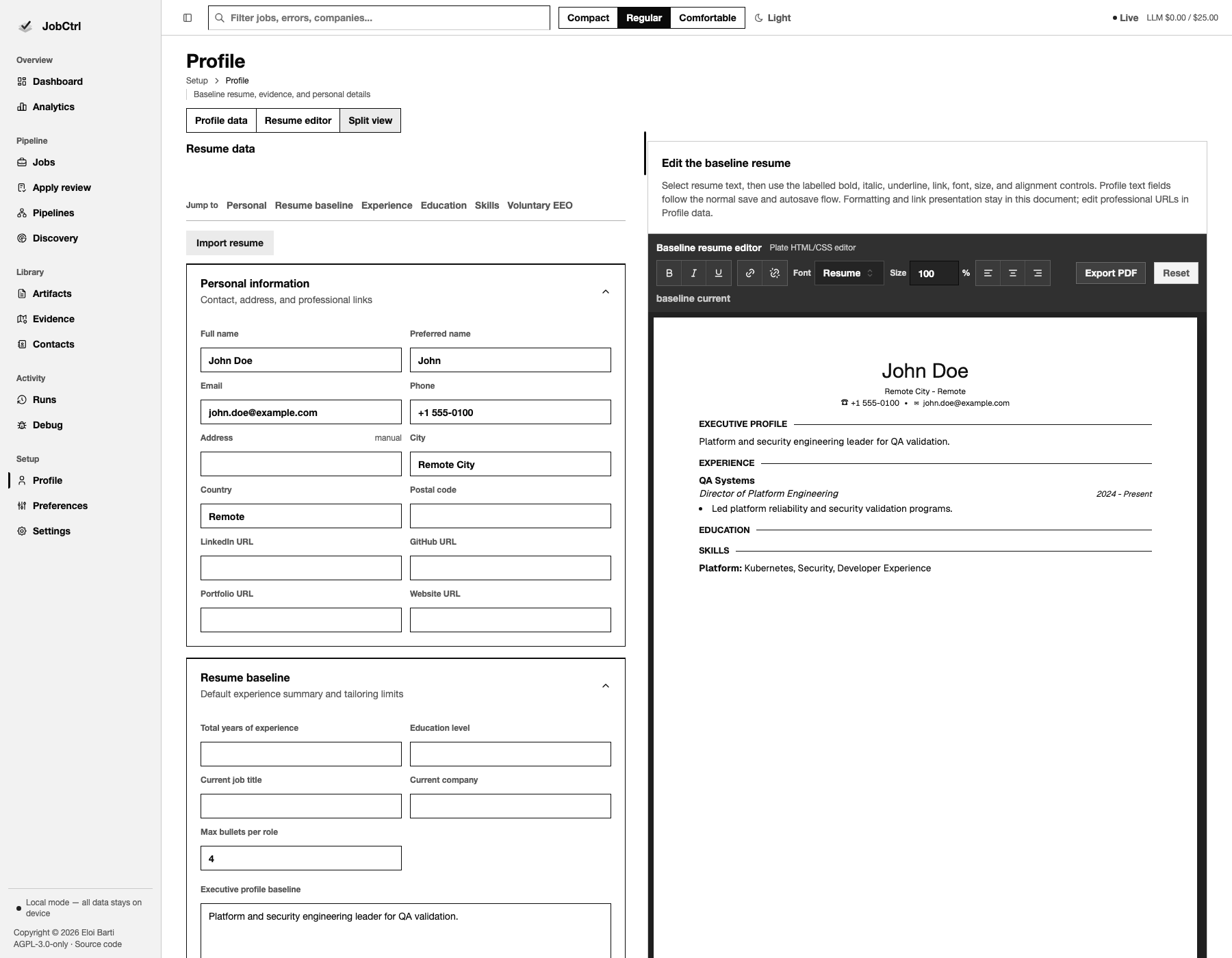 The Profile route workspace keeps canonical fields beside the real editable baseline resume.
Candidate Profile defines which facts and preferences belong to the profile, how versions are used, and which later stages consume it.
2. Configure Discovery
Use the Discovery page to set:
- target roles and role tracks;
- target locations and work models;
- source registry controls;
- minimum fit score and automation preferences;
- manual capture and quarantined source decisions.
The optional browser extension's Save job action also lands here: it records the active page as a user-mediated manual capture, then the normal discovery import path dedupes, snapshots, and surfaces the job in Jobs.
To add one posting without running Discover, open Jobs, choose Import job, and paste its public HTTP(S) URL. JobCtrl fetches that page through the local worker. Model determinations identify and extract the requested posting. It is ingested by exact canonical identity and opens Job Detail without a separate intake filter; full-posting analysis/scoring assess fit. If the page is blocked, login-walled, rate-limited, or cannot be identified safely as a posting, no placeholder job is created; the URL is placed in Discovery → Manual Capture for user-provided content instead. Different URLs can be imported concurrently from separate Jobs views; each finishes independently. If a later retry can read a URL that previously needed Manual Capture, the successful import closes that matching manual task against the canonical job.
Target locations are validated before they can drive discovery. Discovery uses exact and broader recall role queries, then filters and scores the results downstream.
For CLI workflows, review configuration and runtime readiness before starting work:
jobctrl doctorDiscovery targets and runtime preferences are normally edited on the Discovery page, and every field on that page persists in SQLite. Discovery explains how target controls compile into queries, when runtime and schedule changes activate, and how crawl politeness is enforced. Provider credentials, model policy, and the shared spend ceiling remain in Configuration.
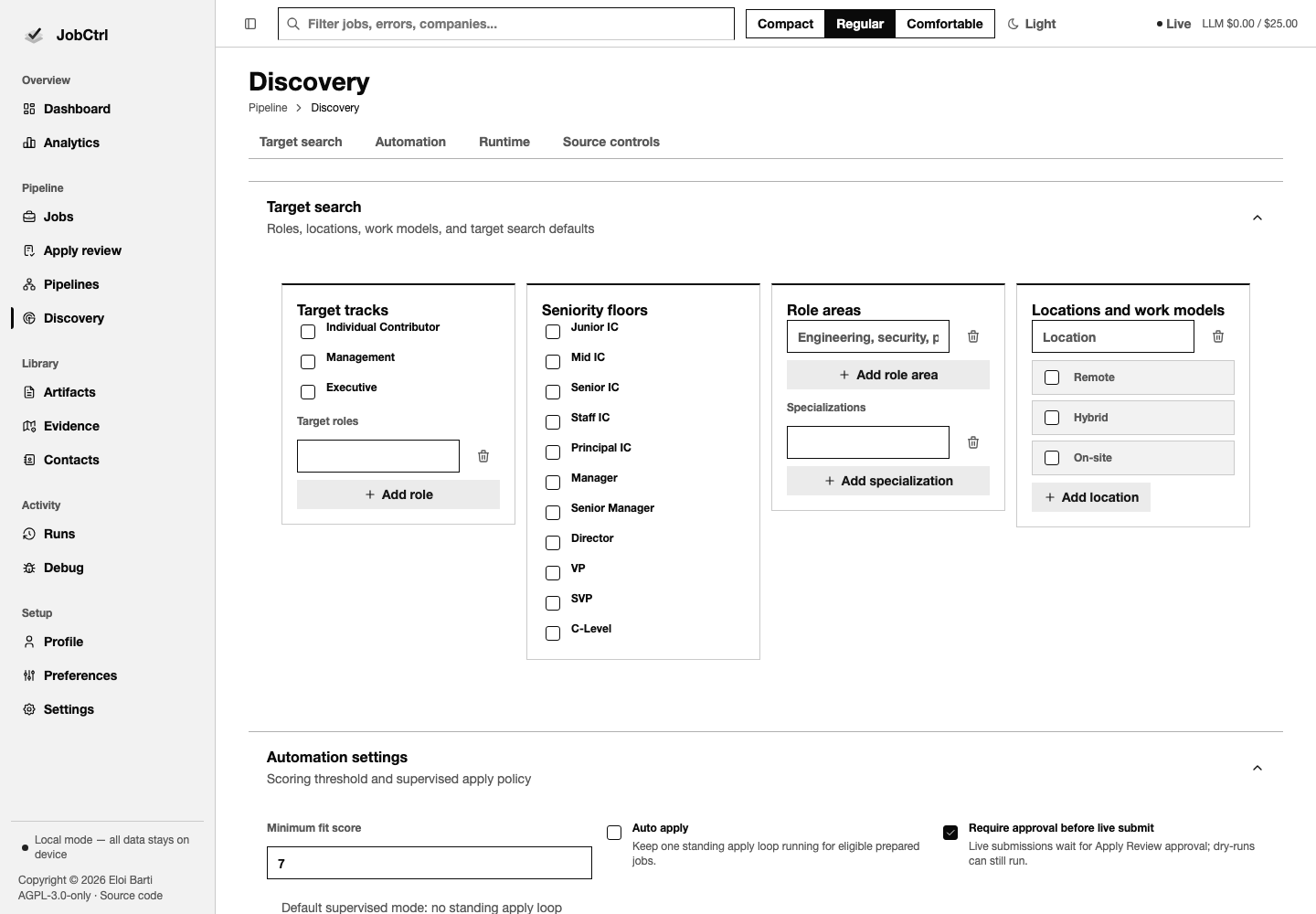 The Discovery page configures target search, seniority floors, locations and work models, minimum fit score, job boards, and the source registry.
3. Run Discover
Open Pipelines, choose the Discover tab, set the run limit, internal concurrency, optional source selection, and dry-run mode, then start the run. The source picker accepts up to 50 sources; leave it on All runnable sources to use the complete enabled registry.
Discovery can start while the extension is offline. Pipelines shows its status without disabling launch. To prefer your current signed-in Chrome profile, keep the selected paired extension connected. Each acquisition setup chooses the connected extension or guarded public HTTP/anonymous Playwright before fetching. Neither mode copies a profile, and a site or access failure does not switch transport. Worker readiness and stage eligibility still gate launch.
Start the same Discover workflow from the terminal:
jobctrl run discoverThe CLI uses the same optional transport selection. An offline extension does not prevent dispatch; public-source restrictions and worker readiness still apply. See Crawl Politeness for source-specific limits, including anonymous broad-board proxy restrictions.
Per-stage commands (jobctrl enrich, score, tailor, cover) and the single-job path (jobctrl job <url> --dry-run) start the same underlying workflows when you want a narrower run.
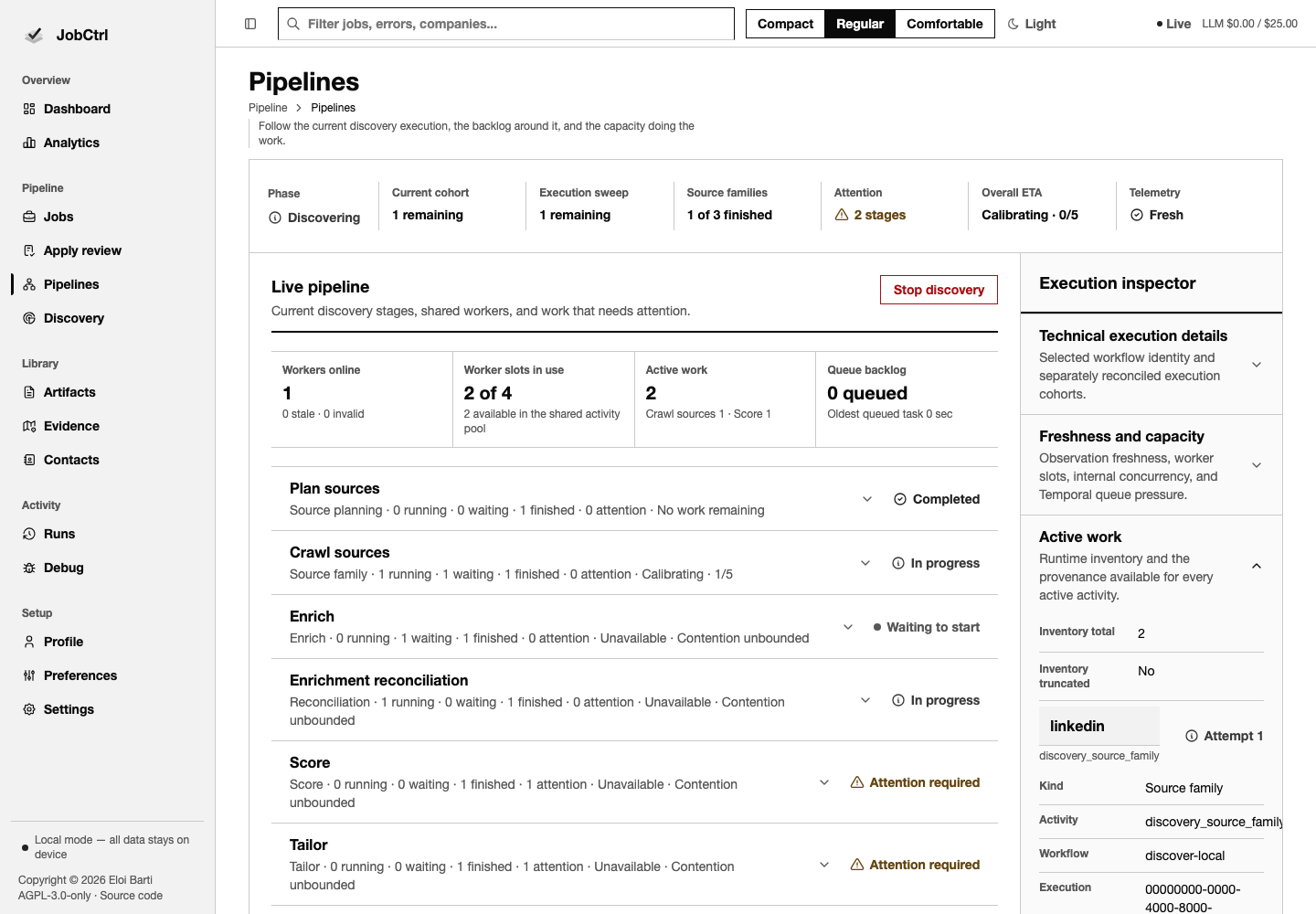 Pipelines starts bounded work and keeps its execution scope, exact stage outcomes, backlog, capacity, ETA, freshness, and active work visible.
Discover owns the preparation path:
- source crawling or ATS/API fetches;
- detail enrichment;
- scoring;
- tailoring eligibility;
- material generation, or suppression, for eligible jobs.
Keep Pipelines open while the run works. Read its scopes separately:
- Current execution is work admitted to the selected Discover execution.
- Execution sweep is eligible pre-existing backlog adopted by that execution.
- Global outside execution is unrelated backlog and is not included in the selected execution's completion claim.
The source-family plan reports intake separately from the two reconciliation steps: the enrichment pass and preparation fanout. The live stage cards make waiting, processing, terminal, and attention totals visible first; All stage outcomes expands the exact succeeded, skipped, blocked, failed, canceled, needs-verification, stale, and unknown counts. An attempt budget that has run out is a failed outcome with attempt budget exhausted as its reason, not a separate lifecycle state. Retrying that failure resets its attempt budget. During an active source crawl, planned source families that have not entered their bounded execution batch appear as waiting, not unknown. Unknown is reserved for a planned family whose lifecycle is still missing after the Discover workflow has ended. Backlog and diagnostics keeps the execution sweep and unrelated global backlog separate from that current-execution flow. Capacity details include configured and active slots, internal parallelism when applicable, and approximate task-queue pollers, backlog, age, add rate, and dispatch rate. The execution inspector shows cohort membership and remaining work, read-model freshness, and the bounded active-work inventory. Treat ETA as an observed range: calibrating, no recent dispatch, stale, unavailable, and no-work states are deliberately explicit rather than replaced by a guessed finish time. An unavailable ETA does not mean that the workflow itself is paused. An unknown provider page total prevents a crawl percentage, not necessarily a source-family ETA: after at least five recent family completions, Pipelines can use whole-family duration history when live capacity and queue observations bound the current source lane. When a closed run leaves work behind, Set up a new Discover run becomes available only after the live operations snapshot proves that shared runtime capacity is idle. The Discover run control follows the same guard, so selecting the tab directly cannot bypass it.
Workers, Activity Slots, And Queue Backlog
The capacity strip separates worker processes from the concurrency they offer:
- Worker processes online counts fresh JobCtrl worker heartbeats for the selected Temporal task queue. One online process can provide several activity slots. Stale heartbeat records are historical registrations outside the freshness window; they are excluded from online capacity.
- Activity slots in use reports concurrent Temporal activities across all online worker processes as
active of configured. For example,0 of 4means the worker pool is healthy and idle: no activity is executing and all four slots are available. Slots are execution capacity, not workers or jobs. - Active work is the bounded, privacy-safe inventory of allowlisted runtime activities. It may be smaller than the number of occupied slots when details are unavailable or intentionally omitted.
- Queue backlog is the combined approximate count of tasks waiting in Temporal's workflow and activity queues. Workflow tasks wait for workflow pollers, while activity tasks wait for activity workers and their available slots. It is infrastructure pressure, not the selected execution's job total. An unavailable observation means unknown, not zero.
Configured slots are summed across the fresh worker processes, and available slots are configured slots minus active slots. The expanded Freshness and capacity inspector shows the underlying worker, slot, executor-thread, and task-queue observations. For the exact API semantics, see Operations & Events.
Selected-run tracking is reconstructed automatically after an upgrade or worker restart when an older execution predates native lineage. Pipelines labels that transition Restoring pipeline history, continues to show fresh worker, queue, and active-stage telemetry, and withholds exact selected-run counts, percentages, and ETAs until the worker verifies the complete membership and stage-key sets.
Use Stop discovery while the selected Discover workflow is actively discovering or draining. Cancellation refreshes Pipelines as well as Runs and Dashboard. After a failed execution, Pipelines reports the active-work total or states that the runtime inventory is unavailable; it never turns missing inventory into "no work." If the exact history cannot be read or mapped safely on one pass, the repair remains in automatic retry instead of becoming a permanent tracking mode. Reconnecting to its authoritative history restores that run or records its real terminal outcome. The same repair closes native activity rows when exact Temporal history proves that a closed workflow timed out or failed after its worker stopped reporting, so a closed run cannot remain shown as processing. If immutable legacy history ended before recording every target, the run is labeled Historical run incomplete; JobCtrl preserves all exact recovered evidence and does not fabricate or continuously retry the unknown remainder. Set up a new Discover run is appropriate only when the prior execution is closed or genuinely absent and fresh runtime capacity confirms zero active slots; it selects the Discover controls and does not start a run until you submit them. Workflow identifiers and bounded reason codes remain under Technical details.
Internal stages such as Enrich and Score, and material generation (the tailor and cover commands), stay visible in job detail and diagnostics, but the user-facing preparation stage is Discover.
Enrichment & Extraction explains how captured postings become normalized, provenance-bearing job records before scoring.
4. Review Jobs
Open Job Detail's Posting availability to compare the latest attempt with the last successful verification. Check availability requests a bounded worker check; Inspect employer posting opens the source for your own inspection. Stopped/offline workers leave evidence overdue. Preparation refreshes evidence after six hours and can proceed with unknown availability. Rehearsals and bound human-reviewed/manual Apply also remain available while unknown; unattended Apply needs active evidence from the last 15 minutes. Confirmed closure stops work. Failed checks preserve saved descriptions, materials and approvals. The enrichment guide owns the complete background-check policy.
The Jobs view supports filters, sorting, pagination, deep links, job-state and fit-score filters, stage state, source provenance, compensation evidence, and route-level job workspaces.
Use the CLI to inspect workflow health, then review the jobs themselves in the web app:
jobctrl pipeline-status
jobctrl runs --failed-only
The Jobs table and Job Detail workspace are the review surfaces for score evidence, source provenance, artifacts, readiness, and per-job actions.
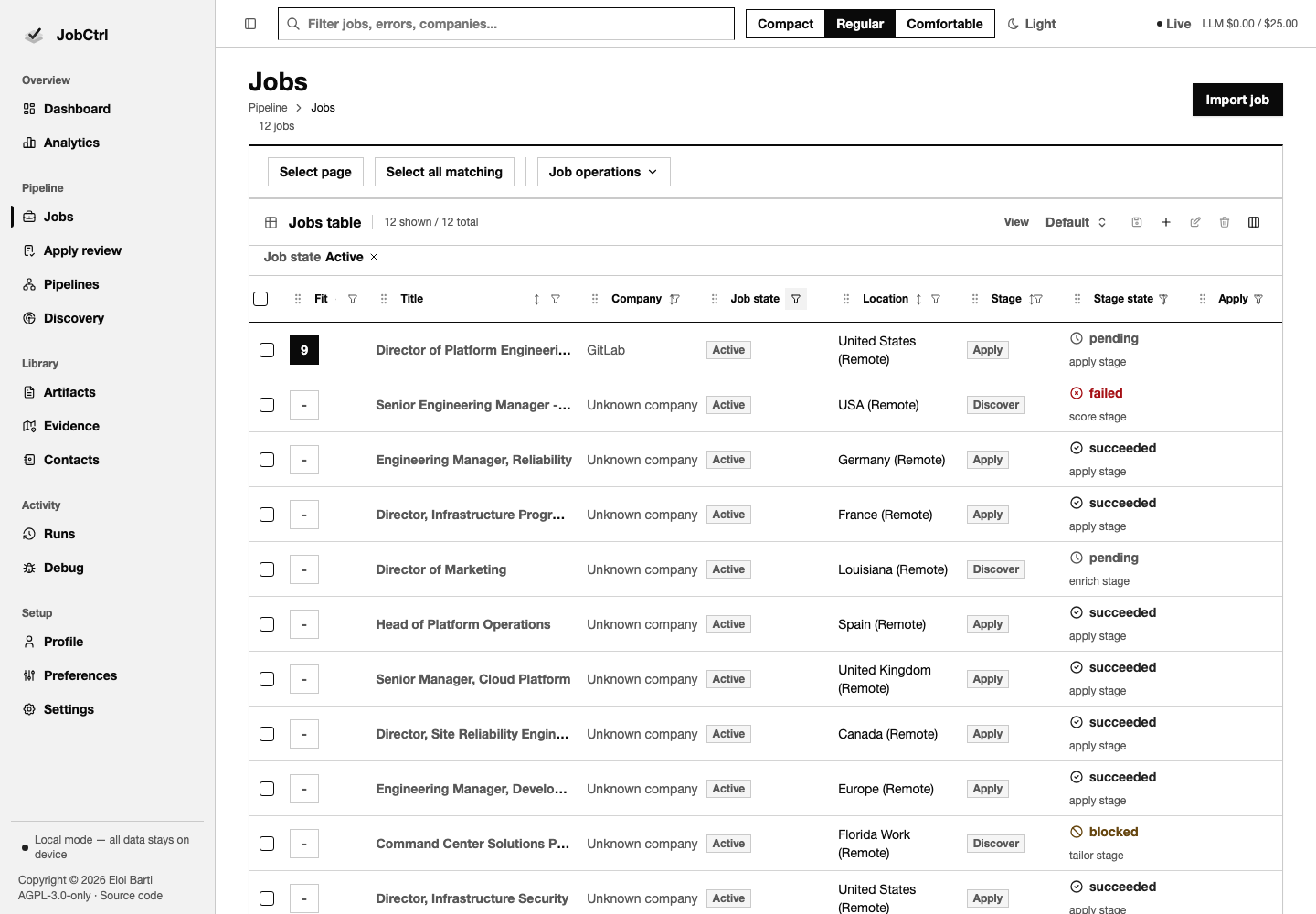 The Jobs table keeps lifecycle state and pipeline stage distinct while preserving filters, saved views, and bulk triage actions.
Use the Job state column filter to show Active, Deleted, Hidden, or any combination of those values in one table. The default view selects Active only. The options remain available even when the current page has no row in that state, and the server applies them before totals and pagination. Hidden takes precedence if a job has both hide and delete tombstones. Closed is not a normal user-facing state; old links that use it remain compatible. Active postings do not repeat an OPEN label beside every title. The default view keeps Sources and Warnings available in column controls but hides them until needed. Mixed-state selections expose only the actions eligible for each state: delete or hide active jobs, restore deleted jobs, unhide hidden jobs, and permanently remove deleted or hidden jobs. Delete and permanent-delete actions use destructive styling, while restore and unhide remain recovery actions. Opening a row uses its keyboard-focusable row action, so the table does not add a redundant visible Open control to every record.
At 900px and below, the Jobs, Artifacts, Contacts, Discovery, and Settings data tables reflow into labelled record cards. Their sorting and filtering controls remain available, and at phone width each card becomes a single readable column rather than forcing a multi-viewport horizontal scroll.
Open the Job Detail route workspace to inspect:
- score, confidence, blockers, gaps, and score policy metadata;
- the requirement-fit report when present;
- audit history;
- source and enrichment evidence;
- generated artifacts;
- apply readiness and blockers.
Accepted artifacts appear first, newest recorded generation first. Older approved artifacts remain visible. Canonically superseded artifacts are available under Superseded artifacts; expand it to inspect or open them.
The sections below the Job Detail header form one full-width column at desktop and phone widths. Description is first, and every section starts collapsed when opening a job. Open Sections to jump to any section in reading order; the destination expands, scrolls into view, and receives keyboard focus. The same menu offers Expand all and Collapse all. Each section can also be collapsed from its heading without losing a draft form entry or live update.
The question-mark buttons beside Job Detail labels open short explanations of the saved value, its source, and important limits. Press Enter or Space on a focused button to open its help, then Escape to return focus to the button. Use them when reading:
| Area | Help available for |
|---|---|
| Overview | fit, posting metadata, apply readiness, workflow and application state |
| Fit & evidence | score, band, confidence, eligibility, requirement fit, must-haves, concerns and diagnostics |
| Compensation | posted and market ranges, source evidence, reliability and benchmark lineage |
| Role analysis | seniority, model agreement, ensemble, generation, framing, requirements, keywords and candidate evidence |
| Preparation | stage states and diagnostics, artifacts, description, application target and interview prep |
| Follow-up | apply history, outcomes, contacts and audit history |
A cited model agreement determination compares surviving employer-analysis drafts. It reports agreement and divergence with source spans; text equality and keyword overlap do not establish agreement or candidate fit. When a fit score was manually corrected, its help identifies the correction and reason. The displayed band, confidence, and eligibility remain from the saved scoring breakdown; correcting the score does not recalculate them.
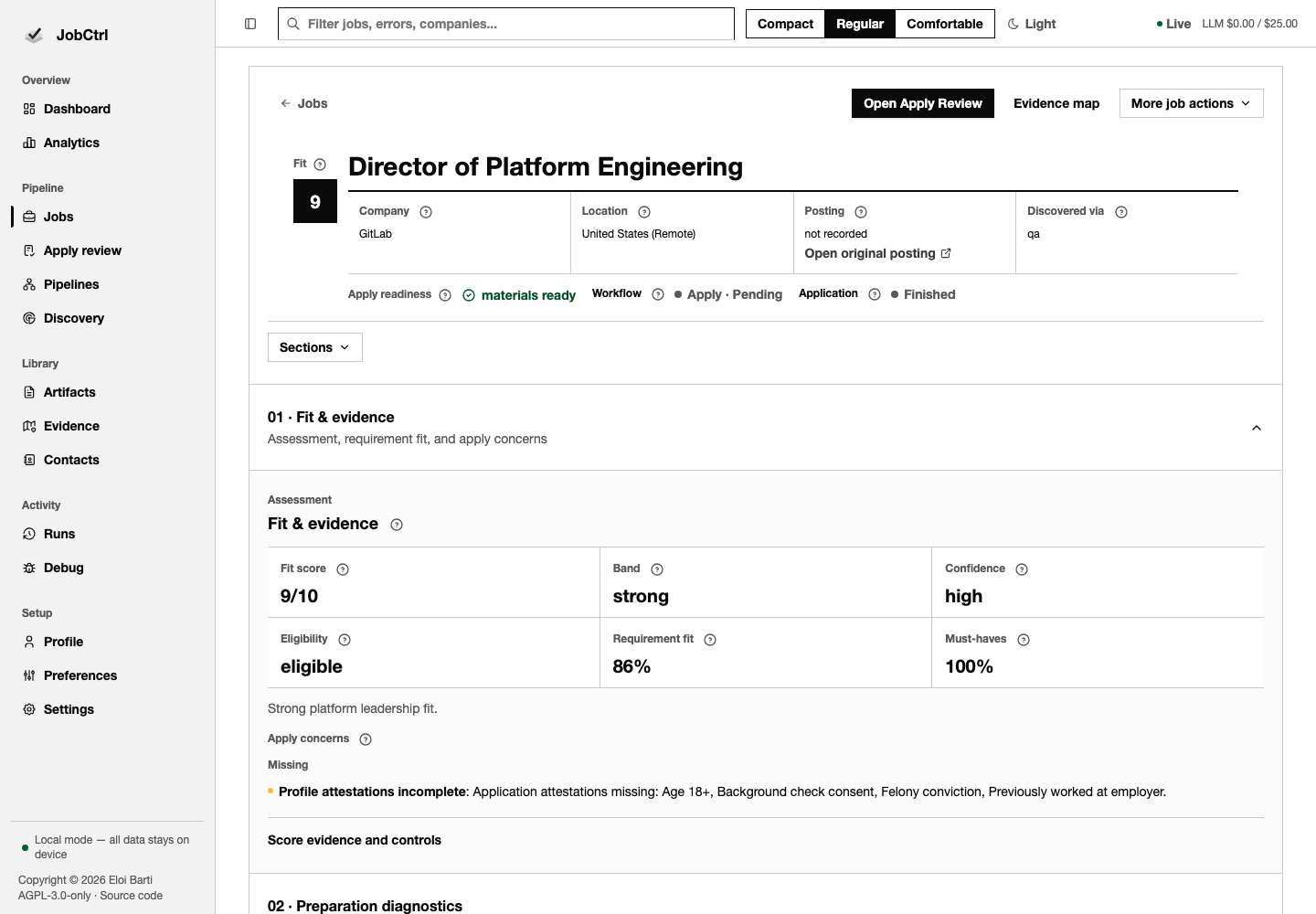 Job Detail keeps audit triage, requirement evidence, compensation, materials, actions, progress, contacts, outcomes, and history on one bookmarkable route.
Failed preparation work can be retried per job or in bulk without automatically starting apply automation.
Scoring owns the fit decision model; Compensation Evidence owns the salary evidence shown alongside it.
5. Inspect The Evidence Map
Open Evidence from the main navigation, the Profile page, or a Job Detail workspace. The Evidence map shows the canonical profile achievements and declared skills currently reused by generated resume bullets, requirement-fit decisions, verifier-recorded requirement coverage, and recorded gaps. Links in the usage lists return to the owning artifact or job detail so you can audit the source before editing profile evidence or re-running materials. Its entry list, selected evidence, and gaps inspector stack in reading order when the three-pane desktop workspace no longer fits.
The Evidence map is a web app audit surface. Use the CLI to check run health, then inspect evidence usage and gaps in the Evidence view.
6. Generate And Inspect Materials
Eligible jobs receive tailored resumes and cover letters during Discover. You can also generate materials for a single job from the Job Detail workspace.
Run a narrower material-generation path from the terminal when you do not want a full Discover run:
jobctrl tailor
jobctrl cover
Inspect the generated records, validation, and accepted artifact history in the web app before using anything.
Generated material records are kept as audit history. Re-generation does not destroy the accepted material already in use; a replacement becomes active only after it validates and you approve it.
Artifact Detail presents the human-readable audit first—summary, evidence, tailoring explanation, and comparison—then places the full-width PDF preview below those details. Raw artifact, job, path, evidence, and requirement keys are diagnostic facts under Technical details, not the primary labels shown to the reviewer.
In Job Detail → Artifacts → Editable DOCX, choose A4 or Letter and export an accepted resume or cover letter. Retained exports can be downloaded again without regeneration; failed exports preserve the accepted materials. See Editable DOCX Export for limits.
Materials & Tailoring explains provenance, validation, accepted-artifact history, and the boundary between generation and human approval.
7. Generate Interview Prep (Beta)
Beta maturity boundary
The question library and its criteria remain a research draft. Grounding and fabrication gates do not establish coaching quality, hiring outcomes, readiness, or validated grading. Review personal claims against their linked evidence.
Open Interviews to browse the full local library without a job or provider call. Explore topics and authors through the Questions and Sources graph perspectives, or use List. Search and filter cards, inspect a selected question, and bookmark its URL or a filtered view. Cards expose guidance, responsibility-based adaptation, alternatives, probes, draft criteria, source-reading coverage, and synthetic examples where available.
For personal preparation, choose a job or follow its Job Detail Interview prep link. Set the interview stage/format when known, role responsibilities, and known employer criteria. Review the selection rationale, add or remove questions, and choose the order. For each question, keep automatic evidence selection, choose up to eight accepted profile evidence records, or explicitly choose none. A changed profile requires reselection while retaining your draft choices. Generate a bounded set of at most 16 questions with format-appropriate outlines; missing details and explicit empty evidence choices remain questions and gaps.
The Interviews explorer and personal preparation controls are web surfaces. Use the CLI for workflow status checks around an explicitly started run.
Inspect each outline's evidence excerpts and original input bindings. Current profile, job-analysis, catalog, or approved-material changes mark older prep stale and leave regeneration under your control. Legacy themes, STAR drafts, gap drills, and company notes remain readable without invented card bindings. Regeneration keeps the last accepted prep visible until a replacement is accepted, including during provider failure or gate rejection.
Save personal notes separately from generated prep. Notes have their own revision and factual-support label; new recollections remain unverified, and edits do not inherit a passed generation audit. Failed saves preserve your draft, and a conflicting revision requires reconciliation. Preparation does not change Profile, fit, or Apply decisions.
After the interview, record a reflection from the prep panel. It remains a manual interview outcome linked to a prep generation and appears in the job's application outcome timeline.
Interview preparation owns the detailed flow, sources, history, and note boundaries. Reusable preparation without a job, typed rehearsal, calibrated feedback, and live assistance remain future phases; this release has no microphone, transcript, answer grading, or in-session answer surface.
8. Review And Edit The Resume
Apply Review opens the generated resume in an in-browser rich-text editor, not a static preview. You can edit the resume text, adjust formatting, and add or remove hyperlinks before rendering a replacement PDF. The editor keeps the final PDF link, the source behind each line, risk flags, JobCtrl's line comments, and your draft together.
The resume review editor is a web app surface. Use CLI commands to generate or check workflow progress, but edit, validate, render, compare, and approve resumes in Apply Review.
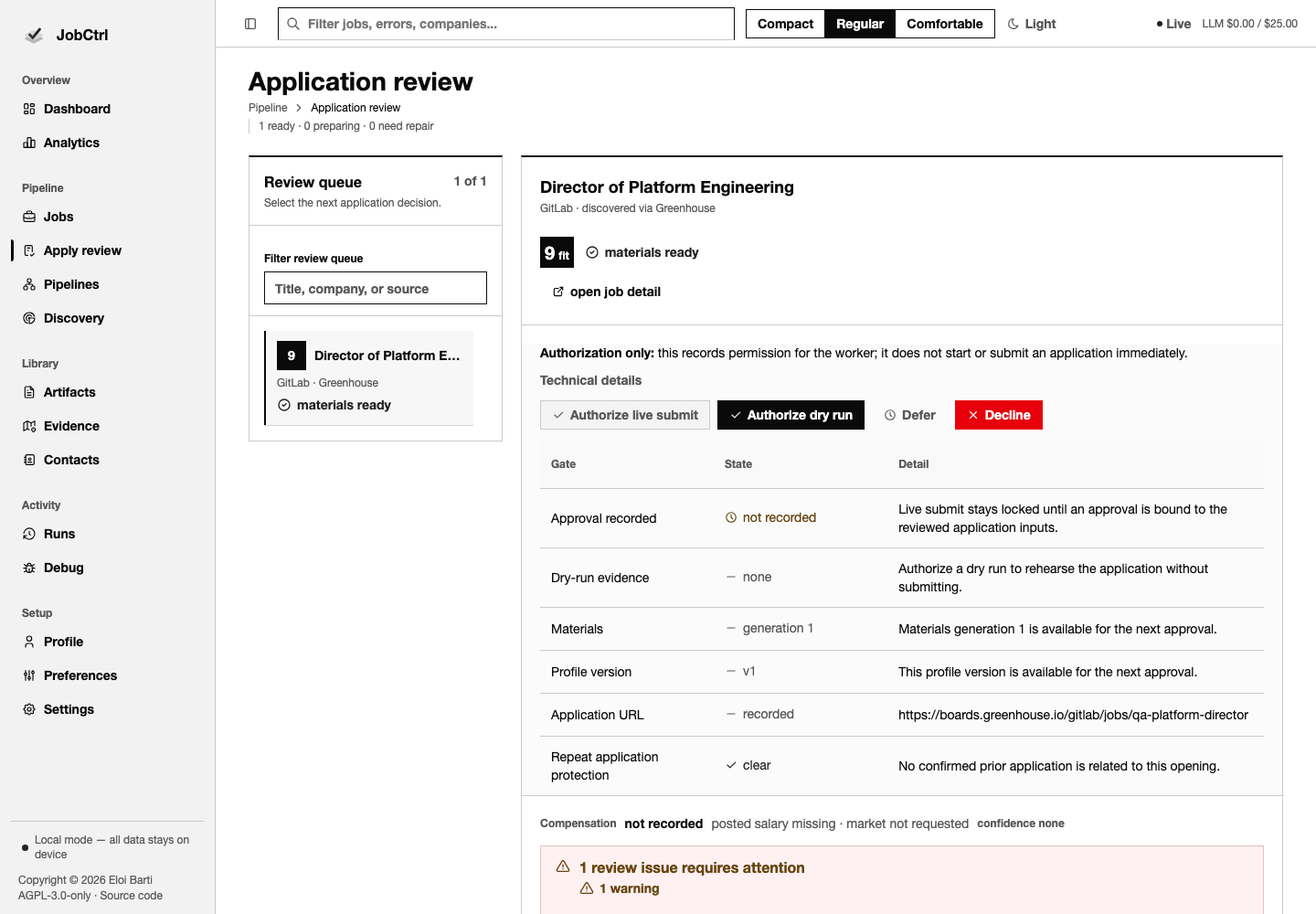 Apply Review pairs requirement evidence and the verbatim job post with the tailored resume preview, JobCtrl line comments, and approve or dry-run controls.
On working desktop widths, the review queue remains a left rail and the selected application's decision, evidence, and materials occupy one full-width sequence. On narrower screens, the queue moves above that sequence and decision actions wrap below their approval context without dropping or hiding audit content.
Typical review actions:
- edit the generated resume text, formatting, and hyperlinks;
- reply to JobCtrl line comments;
- save or autosave a draft revision;
- validate and render an edited draft into replacement artifacts;
- compare the accepted artifact with the rendered draft using stored coverage, validation, judge, template, and risk-label rows;
- approve only after the edited draft is saved, valid, and rendered.
Persisted comments stay attached to their rendered resume line when their anchor resolves. A comment whose line no longer exists or whose anchor cannot be resolved remains visible under Comments without a rendered line rather than being dropped, so its status, replies, and source identifiers stay inspectable.
Failed validation stays as audit history and does not hide the last accepted artifact.
9. Rehearse With A Dry Run
Apply automation can submit real applications, so start with dry runs:
Use Apply Review to run and inspect a dry run before approving any live submission. The approval ledger shows whether the dry run was complete, partial, or blocked.
jobctrl apply --dry-run --limit 1
jobctrl apply --url https://example.com/job/123 --dry-run
The first dry-runs Apply for one eligible job; the second dry-runs a specific job by URL. A dry run never submits — it shows what would happen without sending anything.
Auto apply is separate from a one-off dry run. When the Apply automation setting autoApply is on, a running worker keeps one continuous Apply workflow active only after you explicitly enable auto-apply-browser. In Settings → Browser & extension, JobCtrl can list a supported local Chrome or Chromium by label. Detection is read-only: it does not launch, enable, or persist the browser. Click Enable to adopt the selected installation, or use the advanced manual path. If a detected installation disappears before confirmation, enable fails without changing capability state. The CLI remains an equivalent manual path:
jobctrl capability enable auto-apply-browser --browser-path /path/to/ChromeOtherwise the reconciler leaves the loop stopped and reports the capability as disabled. Browser adoption does not pair the Discovery extension or copy an authenticated profile; those remain separate explicit actions. The Runs page shows the standing apply loop. With applyApprovalRequired still on, that loop claims only jobs already approved in Apply Review and parks the rest as awaiting approval. Turning approval off removes that claim-time wait, but does not grant the model final browser-submit authority. Browser-form runs stop for manual completion; only the owned Gmail sender can submit automatically, and only for the exact approved recipient/attachment candidate.
Inspect the dry run, final materials, field mapping, blockers, and apply-run history before completing a browser form manually or approving an email application. Approval is valid only for the materials generation, profile version, and application URL shown in Apply Review, and requires full dry-run evidence unless you explicitly accept a listed partial dry-run with its blocked channels. Apply owns the application fields, material policy, automation modes, browser capability, and Gmail setup. The full approval model is on the Security page.
10. Inspect Progress
Useful web app views:
- Dashboard for high-level counts, source health, pending learning recommendations, and the versioned Materials policy history.
- Pipelines for the selected execution, execution sweep, unrelated global backlog, source-family intake, reconciliation, stage outcomes, capacity, approximate task-queue pressure, ETA, freshness, and active work.
- Analytics for recorded outcome counts and sample-gated rates by source, score band, fit band, Apply mode, template, and policy. The page reads canonical application outcome rows and projections only; groups below the minimum sample count stay count-only.
- Jobs for triage and the bookmarkable Job Detail workspace.
- Runs for the shared Discover, preparation, and Apply history, using one status vocabulary, terminal-state contract, cancellation control, and route-level timeline. A run's heading and Selected stages field identify the exact stage scope recorded in its workflow input.
- Evidence for profile-evidence reuse, generated-material usage, and gaps.
- Artifacts for generated files and same-job artifact comparisons.
- Apply Review for approval and resume edits.
- Debug for event-level inspection and Activity Detail payloads.
jobctrl pipeline-status
jobctrl digest
jobctrl runs
jobctrl runs --failed-only
These print your pipeline status, show the local daily digest, list recent apply runs, and list only failed apply runs, respectively. The digest is read-only unless you pass --acknowledge, which marks the displayed digest as reviewed.
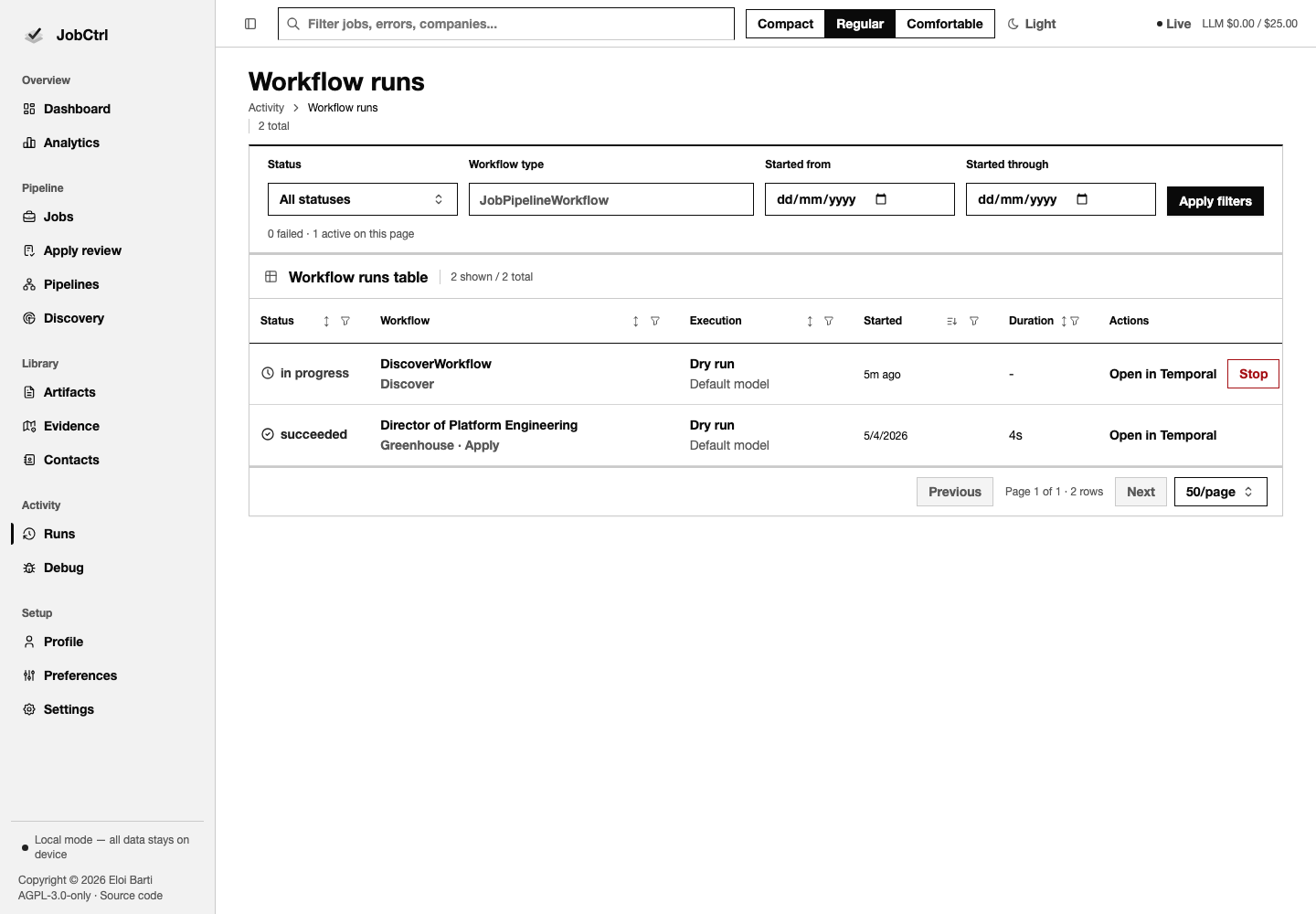 The Runs page lists workflow runs with status, mode, timing, and a link into the web interface of Temporal, the workflow engine. Filter the complete history by status, exact workflow type, or an inclusive date range before opening a run timeline. Run detail names the exact selected stage scope from the workflow input.
A cancel request is cooperative and asynchronous. Repeating it is harmless; the projected run remains inspectable and an already completed, failed, canceled, timed-out, or terminated result is never overwritten by a synthetic canceled state. The same contract applies whether cancellation starts in Pipelines or Runs.
Outcomes & Feedback explains which application and interview facts become canonical outcomes, how analytics read them, and how explicit reviewed feedback can produce a pending recommendation without changing behavior automatically.
11. Keep Contacts (Optional)
Keep contact records for the people behind an application — a recruiter, hiring manager, or referrer — attached to a company or a specific job:
- Open the Contacts page (the "Contacts" nav entry) or the Contacts panel in a Job Detail workspace, and add a contact with a role (recruiter, hiring manager, referrer, warm intro, or other), a link to the employer and/or the application, and facts like name, title, email, phone, or a note.
- Or open Import contacts, choose CSV or vCard, and paste the file contents with its filename. Review the parsed facts, duplicates, and skipped records, then explicitly confirm the import. Each imported fact retains the filename as its source. See supported contact imports.
- Every fact you store shows its provenance — where it came from — in the list and detail views, so you can always see the source of a name or email.
You can also run supervised research from a job's Contacts panel to propose contacts:
- Click run research (optionally pasting one public source URL, such as a company team page). JobCtrl starts a supervised run; with no URL it simply records which sources it could and could not use.
- Research proposes candidates for review — it never stores them automatically (supervised, INV-4). Each proposed candidate shows its provenance (the page it came from, the capture method, and a confidence), and the run shows the per-source outcomes (fetched, rate-limited, historically blocked by
robots.txt, or routed to manual capture because the page needs a login). - Review each candidate and click confirm contact to promote it into your contacts. Only then does it become a stored fact — with its research provenance preserved and marked confirmed by you. No public page is fetched unless you supply its URL, and login-walled pages are never fetched automatically.
Once you have a contact, you can draft an outreach message to them — a truthful, reviewable message that you send yourself:
- In the Contact Detail workspace's Outreach thread, click generate draft. JobCtrl writes a short message grounded only in your profile and the confirmed contact facts, then runs it through the same anti-fabrication gates as your resumes and cover letters: a model claim-verification determination, a content validator, an LLM judge, and a claim-to-fact provenance record.
- Review the gate results and the claim → fact bindings shown beside the draft. A draft that invents a metric, an employer, or a relationship it cannot support is blocked — you cannot approve it until the gates pass.
- Edit the draft if you want; saving your edit creates a new version and re-runs the gates on your edited text. Earlier versions stay in the generation history, and your last approved message is never overwritten until a replacement is approved.
- Approve the message once the gates pass, then copy it and send it yourself through your own channel (your email client, and so on).
- After you have sent it, log the send: record the date you sent it and the channel you used (for example "email"). This is a record you enter — JobCtrl never sends the message and has no way to; logging simply marks the thread as sent so your history is honest. A send can only be logged against an approved draft, and approving a draft is a separate action that never sends anything.
- Optionally schedule a follow-up. JobCtrl suggests a conservative date — 7 days after the application was submitted for the first nudge, 14 days for a later one if you have had no reply — which you can edit freely. Due follow-ups surface in a Follow-ups list and a badge so you remember to reach out; you then send the follow-up yourself, exactly like the first message. Follow-ups are reminders only: they are never sent for you, and any optional recurring reminder is off by default.
You send every message yourself. JobCtrl drafts, previews, and records; it never sends anything to a contact — there is no email, message, or outreach send transport of any kind, drafts terminate at copy/export, a thread only becomes "sent" through a send you log yourself, and contact, research, draft, send, or follow-up data never affects scoring or apply decisions.
Contacts & Outreach defines contact provenance, research confirmation, draft ownership, and the boundary around sending.
Contacts, supervised contact research, outreach drafts, send logs, and follow-up reminders are web app workflows. The CLI can check overall status, but it does not send messages or replace the review surfaces.
Command Reference
jobctrl check-availability JOB_IDThis asks the local worker to check one saved canonical JobId and prints its availability observation; it does not run Discover or Apply.
Run each command as jobctrl <command> from any directory. The installed launcher handles the lifecycle commands and passes the rest to the Python CLI. In a source checkout, run the Python commands with uv --project workers/automation run jobctrl <command>; the lifecycle commands exist only in the installed launcher.
| Lifecycle command | What it does |
|---|---|
start | Start the local services and open the app (--no-open, --foreground). |
stop / status / open | Stop the runtime, report its state (--json, or --pipeline for pipeline stats), or open the app. |
logs [component] | Show the last 200 lines of the temporal, worker, or api log, or of all three when no component is given. |
version | Print the installed version (--json). |
update / rollback / uninstall | Install a newer release, restore an earlier application and its saved database pair (--to <build-id>), or remove JobCtrl. Rollback keeps a compatible recovery launcher; Homebrew preserves the selection until an explicit update. uninstall --remove-data also deletes your local data after you type a confirmation phrase. |
backup | Snapshot jobctrl.db and temporal.db as a pair (--output <directory>); see Back Up And Restore. |
| Domain command | What it does |
|---|---|
init | Run the terminal setup wizard for a starter profile, resume, and search configuration. The web app does not need it. |
setup | Detect provider auth, save the enabled employer-analysis legs, and finish with a doctor report. In a source checkout it also syncs pnpm/uv dependencies and Playwright Chromium. |
doctor | Report setup checks for the database, LLM providers, Temporal, browser, Gmail, and telemetry. Read every row: it exits zero even when a check prints MISSING. |
run [stages] | Start pipeline workflows (default all, which maps to discover). |
source-proposals from-history / list / reset CANDIDATE_ID | Explicitly propose sources from saved canonical posting/application URLs, read retained evidence and review history, or reset one rejected coordinate. Review and promotion use the existing Source locator; see Discovery. |
discover / enrich / score / tailor / cover | Start one stage; score --rescore re-scores jobs that already have a score. |
job <url> | Tailor and/or apply one job (--tailor, --apply, --dry-run). |
apply | Start apply automation (--dry-run, --url, --continuous to keep polling for new jobs). Utility modes: --mark-applied, --mark-failed, --reset-failed, and --gen (inspection-only dry-run prompt). |
retry <stage> <url> | Reset one failed stage for one job (--reset-attempts, --run). Enrich retains accepted content and automatically renews an exhausted stage budget; see Enrichment. |
action <stage> | Low-level single-action dispatch with JSON output, for scripts. |
compensation-refresh | Re-parse posted salaries and refresh market estimates for all jobs or one (--job-id, --observations-json, --no-eurotoptech). |
pipeline-status / runs | Show pipeline stats, or recent apply runs and one run's event timeline (runs --failed-only, --run-id). |
digest | Print the local daily digest; it sends no notifications. Only --acknowledge marks it reviewed (--json, --min-fit-score). |
capability list / enable / disable | Inspect or change optional browser capabilities, for example capability enable auto-apply-browser --browser-path <path>. |
credentials migrate | Move allowlisted provider secrets from legacy .env files into the native credential store. |
gmail-auth | Connect Gmail for verification codes, outcome lookup, and approved email applications. |
migrate-resume-html | Convert or refresh approved resume PDFs onto the HTML/CSS renderer. |
material-export JOB_ID --source-artifact-id ID --generation N | Create an editable DOCX from an accepted resume or cover-letter text artifact; see Editable DOCX Export for formatting and locale limits. |
backup | Source checkout only: write a VACUUM INTO copy of jobctrl.db (--output). |
worker | Run the long-lived Temporal worker. |
rpc | JSON-RPC server started by the TypeScript API (internal). |
Semantic Determination Authority
Saved settings drive deterministic provider searches and canonical ingestion. Full-posting analysis and scoring assess suitability; there is no separate listing-admission model or queue. Role-analysis agreement is a persisted model determination. Resume/outreach/interview truthfulness and quality use separate model verdicts and source-bound anchors. Form answers and repeat-role equivalence come from determinations; confirmation and submission authorization remain distinct user actions.
See the decision for caching, provenance and failure contracts.
Optional company briefing commands
jobctrl company-briefing configure JOB_ID --company-url URL --source URL --confirm-identity confirms a company link and selected public sources. company-briefing refresh JOB_ID --allow-public-fetch refreshes explicitly; --force re-fetches within the freshness window. company-briefing show JOB_ID reads the saved result. All support --json. Job Detail, Interviews and the existing digest share the result; see Company Briefings for bounds, stale state and retention.